Audience
- Admins
- Support staff
Manage Customer Registrations
Go to: Spaceman Desktop → SpacemanWeb → manageCustomerRegistrations
This job allows users within Spaceman Desktop to manage customer accounts on Spaceman Portal that are pending, locked, deleted, or blocked. You may select one of these four groups to get a list of the current customer accounts with that state, with relevant information, and then you may take actions on these accounts.
Any customer accounts listed in these groups will not be able to log into Spaceman Portal.
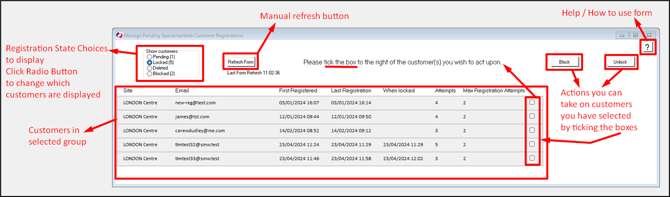
Pending – If site confirmation is enabled (See section "Site Confirmation (Optional)") then accounts that customers have registered and verified through Spaceman Portal (not Spaceman Shop) will appear here, ready for a user to select and either Delete or Approve.
Locked – A customer account will be locked if it has exceeded the maximum number of registration attempts. (See Registration Custom Settings for how to set that number.) You may select and Block or Unblock these accounts.
Deleted – Previously pending customer accounts that have been deleted in this manageCustomerRegistrations menu will show in this list. You may select and Undelete accounts in this list.
Blocked – Customer accounts that were previously locked and then blocked by a user will show in this list. You may select and Unblock them.
Add a Spaceman Portal Customer Account
It is possible to add Spaceman Portal customer accounts manually, via a form in Spaceman Desktop.
This form could also be used if the customer has been locked out of their account.
Go to: Spaceman Desktop → Customers → Find customer to add → Expand
→ Reports tab → ADD CUSTOMER to SpacemanWeb → Open
- For new customer account, primary email address is needed in Addresses tab otherwise account cannot be created.
- Open the ADD CUSTOMER to SpacemanWeb job, click Create New Account if you are happy with the Login ID and Email Address. You will need to reopen the job.
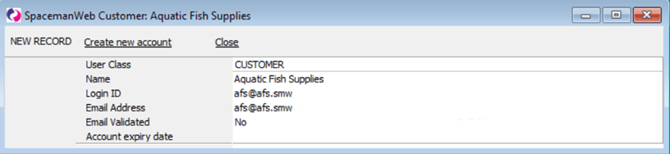
- You can view the details of the Spaceman Portal account from this job, and control the
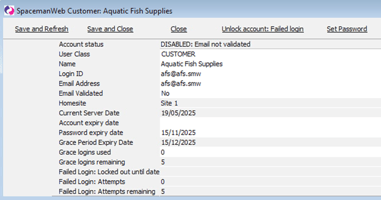 login ID, password, expiry, validation, grace and more!
 - If locked, account can also be unlocked from here.
- To get the account running for a customer, set the Email Validated to Yes (if you are sure) and give them a temporary password with Set Password. Set the password expiry date to soon, such that the customer is forced to change their login password to something they want.
- Customers can change their password in Spaceman Portal, from their user menu on the top bar when logged in. Or they can change their password via the Forgotten you Password functionality on the Portal login page, if enabled.
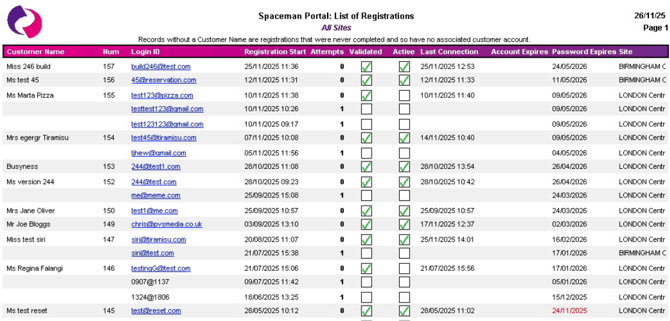
Spaceman Portal Registrations List Report