
Audience
- Admins
- Support staff
About this Feature
RADical Systems provides default email templates used by Spaceman Portal, Shop, and Ops. Admins can edit these templates to match company branding or messaging needs.
Emails are sent in the default language set in smwConfig.
- Spaceman Desktop → SpacemanWeb XML Menu → SMW Configuration → ROOT: language → Set value to one of en, de, es, fr, or it.
SMW Email Template Editor
Go to: Spaceman Desktop → SpacemanWeb → SMW Email Template Editor
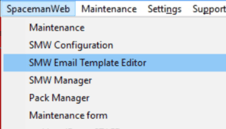
You will see the following:
- Template List – All email templates sent from Spaceman Shop, Portal, and Ops.
- Languages – Available supported languages.
- HTML Templates – All HTML email designs available.
HTML Templates
The DEFAULT_TEMPLATE is a simple black-and-white HTML template which shows what is necessary in creating a template for Spaceman Web Emails. A branded design for the emails can be added in this window, then that HTML template will become selectable for each email template in the Template List.
Any HTML Template added to SpacemanWeb should have the following replaceable parts so that it can be dynamically added to by SpacemanWeb.
- [[EMAIL_TITLE]] – Title of the email. Will be the same as the Email Subject.
- [[SITE_EMAIL_HEADER]] – “Site Email Header” tag value from Site Details.
- [[SALUTATION]] – “Dear Customer,” / “Dear Site,” / “Dear //Salutation//,” depending on the template’s recipient.
- [[SECTION_1]] – Opening text of email.
- [[CODE]] – Verification Code HTML added by SMW.
- [[SECTION_2]] – Details of email subject. E.g. “The details of the new contract are:[RENT_RES_DETAILS][HIRE_DETAILS][SALE_DETAILS][CUSTOMER_DETAILS]” where the square bracket parts will be replaced with the details.
- [[EMAIL_REGISTERED]] – Email of the account / registration.
- [[BUTTON]] – Action button HTML relating to subject of email added by SMW.
- BUTTON_TEXT can be edited for templates that use button.
- [[SECTION_3]] – Closing text of email. Customer Details or Contact for Site.
- [[SIGN_OFF]] – “Kind Regards,”
- [[SITE_SIGNATURE]] – “Site Email Signature” tag value from Site Details.
- [[SOCIAL_LINK_1]] / [[SOCIAL_LINK_2]] / [[SOCIAL_LINK_3]] – Three links to social media or contact details that can be added.
- [[NEWSLETTER_LINK]] – Link to subscribe to newsletter of customer.
With all these sections included in your custom HTML code, you will be certain to include all the information that can come from SpacemanWeb in Emails.
Click Add to add a new HTML template, give it a name, and double click on its Contents cell to edit the HTML code. Click OK, and Update to be certain the HTML template has been added. It can then be selected to be used by each email template in the Template List, meaning you can have different HTML styles for different emails.
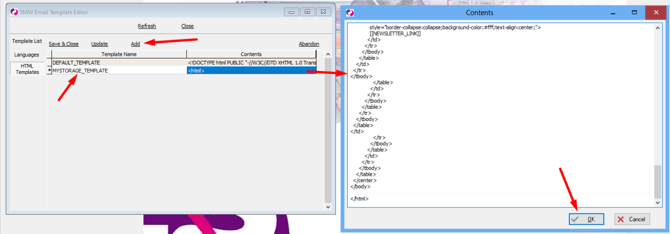

How to Edit a Template
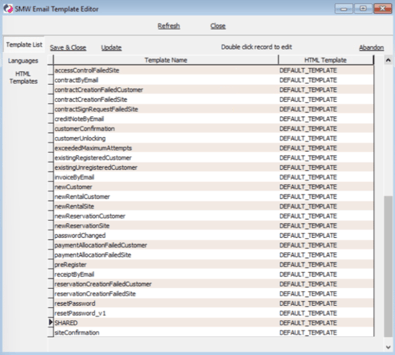 Each email template is configurable. The DEFAULT_TEMPLATE can be replaced with another HTML design if needed.
- Go to Template List tab.
- Double-click the email template to bring up Template Content window.
- (Optional) Select a new HTML Template if you’ve created one.
- Choose the language to configure.
- Use Add or Delete to manage template sections.
- Double click HTML Content cell to edit the text.
-
- Remember that text between // markers (e.g. //Salutation//) pulls data from the database.
Clicking “Reset” will overwrite the custom values with the default values. If you have custom values, sometimes they can be out of date with what the current default is, and so resetting can reveal places where the values have been edited to fix bugs that may not have updated in the past.
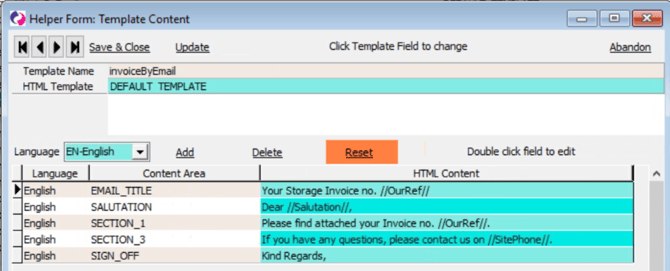
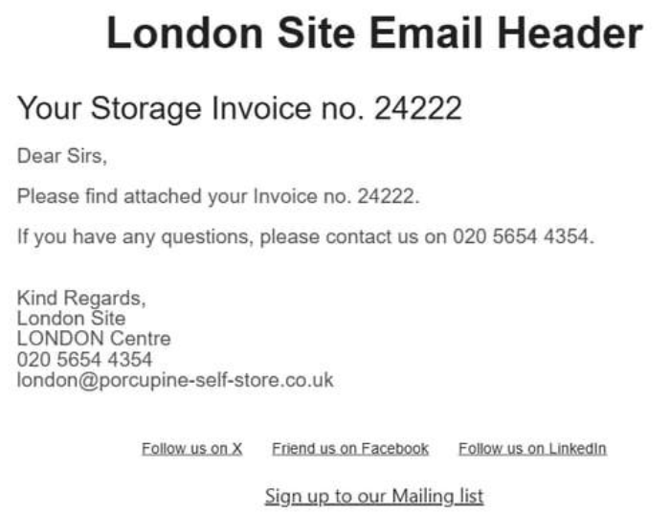
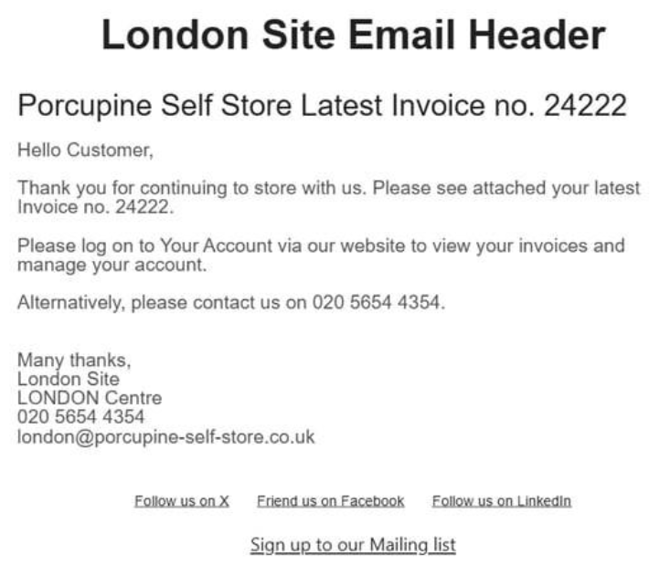
Example – Before and After Editing:
|
|
|
Template List
As of version 2.45.1117.1220
|
Template Name |
Sent From |
Recipient |
Details |
|
accessControlFailedSite |
Shop |
Site |
Sent when access control unsuccessful after booking on Shop. Gives Access Control Batch, Contract, Unit, Customer numbers. |
|
contractByEmail |
Ops V1 |
Given Email |
Contract PDF sent from Ops V1. |
|
contractCreationFailedCustomer |
Shop |
Customer |
Sent when Shop takes payment but errors on Contract creation. Gives all details of the payment and items in Contract. |
|
contractCreationFailedSite |
Shop |
Site |
Sent when Shop takes payment but errors on Contract creation. Gives all details of the payment, items in Contract, and customer. |
|
contractSignRequestFailedSite |
Shop |
Site |
Sent when Shop takes payment but errors when sending Contract for signing to Signable. |
|
creditNoteByEmail |
Ops V1 |
Given Email |
Credit Note PDF sent from Ops V1. |
|
customerConfirmation |
Portal / Shop |
Customer |
Sent after successful registration. |
|
customerUnlocking |
Desktop |
Customer |
Sent after locked customer account is unlocked by Spaceman Desktop user. |
|
exceededMaximumAttempts |
Portal / Shop |
Customer |
Sent after customer attempts to register one more time after reaching the maximum registration attempts. |
|
existingRegisteredCustomer |
Portal / Shop |
Customer |
Sent after customer attempts to register with an email address already used by a Portal account on database already. |
|
existingUnregisteredCustomer |
Portal / Shop |
Customer |
Sent after customer attempts to register with an email address associated with customer account on site. Includes verification code for them to copy. |
|
invoiceByEmail |
Ops V1 |
Given Email |
Invoice PDF sent from Ops V1. |
|
newCustomer |
Portal / Shop |
Customer |
Sent after customer attempts to register. Includes verification code for them to copy. |
|
newRentalCustomer |
Portal / Shop |
Customer |
Sent after successful booking. Includes details of contract. |
|
newRentalSite |
Portal / Shop |
Site |
Sent after successful booking. Includes details of contract and customer. |
|
newReservationCustomer |
Portal / Shop |
Customer |
Sent after successful reservation. Includes details of reservation. |
|
newReservationSite |
Portal / Shop |
Site |
Sent after successful reservation. Includes details of reservation and customer. |
|
passwordChanged |
Portal |
Customer |
Sent after successful password change. |
|
paymentAllocationFailedCustomer |
Portal / Shop |
Customer |
Sent after error produced when taking payment from customer. |
|
paymentAllocationFailedSite |
Portal / Shop |
Site |
Sent after error produced when taking payment from customer. |
|
preRegister |
Portal V1 (Legacy) |
Customer |
Sent after customer attempts to register. Includes link/button to verify email. |
|
receiptByEmail |
Ops V1 |
Given Email |
Receipt PDF sent from Ops V1. |
|
reservationCreationFailedCustomer |
Portal / Shop |
Customer |
Sent when Shop takes payment but errors on Reservation creation. Gives all details of the payment and items in reservation. |
|
reservationCreationFailedSite |
Portal / Shop |
Site |
Sent when Shop takes payment but errors on Reservation creation. Gives all details of the payment, items in Reservation, and customer. |
|
resetPassword |
Portal |
Customer |
Sends after customer requests to change their password. Includes verification code for them to copy. |
|
resetPassword_v1 |
Portal V1 |
Customer |
Sends after customer requests to change their password. Includes link for them to follow. |
|
SHARED |
All |
All |
The footer of all emails with the Social and Newsletter Links |
|
siteConfirmation |
Portal |
Site |
Sends after customer registers if site needs to confirm all customer creation. Button/Link to follow to verify the new customer. |