
Audience
- Support staff
Files needed:
- PTI/StorLogix Cloud: There is a working script for PTI Cloud here:
- StorLogix Cloud Spaceman Shop
- Simply replace the site access script with this.
- StorLogix Cloud Spaceman Shop
SpacemanWeb Access Control
SpacemanWeb is able to use existing Spaceman Desktop access control script, the script needs to be modified slightly so that SpacemanWeb is able to read any errors or success messages from the script.
The Short Version
It’s much easier to say it quickly.
You copy the middle of the existing Spaceman Desktop Access Interface Script, and paste it into the middle of the provided template.
Then save the modified template to replace the original Spaceman Desktop Access Interface Script.
(Alternatively you can paste the top and the bottom of the template into the Spaceman Desktop Access Interface Script.)
Of course you’ll have made a safe copy first!
The Long Version
Manadatory Changes to a Space Manager Access Interface Script
In simplified terms, there are four elements which MUST exist for a Space Manager Access Interface Script to be compatible with SpacemanWeb.
- There must be a
<Block></Block>which contains all the Access Control logic. - There must be a section that checks for the existence of the connection variable
SMWXMLMess. This section must immediately follow the<Parameters>block - There must be a section that sets
SMWXMLMess = 'SUCCESS'when the calling process is 'SpacemanWeb' so that SpacemanWeb can see that this script was successful. This section must follow after all the Access Control code. - There MUST be a
<Catch>block. The<Catch>must setSMWXMLMess = 'Error from {JobName} {exception}'
How to make the changes – using the provided ‘empty’ template
- Download the attached template
Access Control Template.xml - Make the necessary changes to the template. The template effectively provides a new ‘top’ and a new ‘bottom’. You’re going to copy the ‘middle’ of your existing Access Interface Script and paste it between the ‘top’ and the ‘bottom’.
- What does the ‘top’ look like?
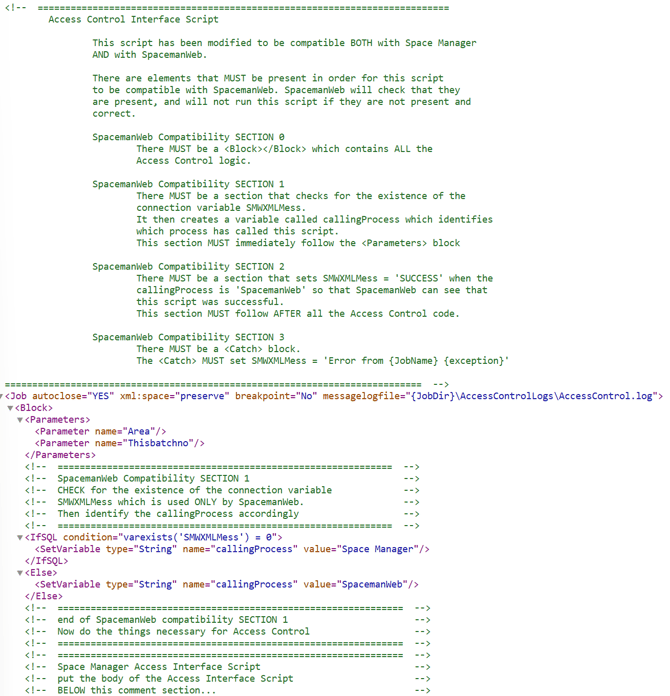
- What does the ‘middle’ look like?

- What does the ‘bottom’ look like?
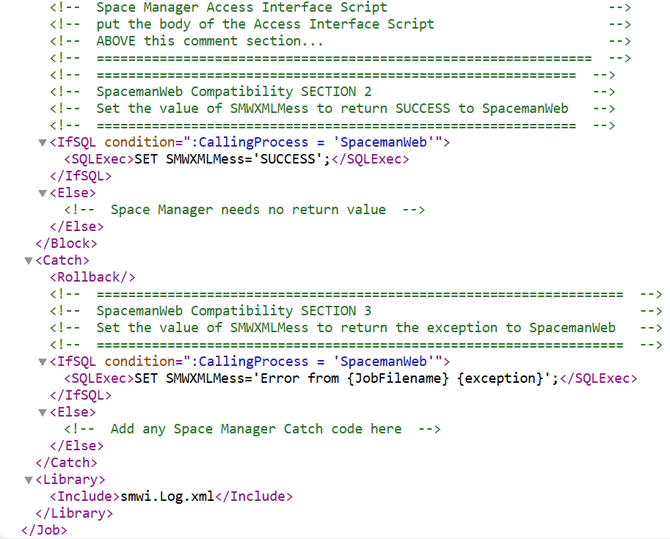
- What does the ‘top’ look like?
- Which section should be copied and pasted in?
- You only need to copy in the middle section of the existing Access Control XML job. This does not include any
<job> <block>or<parameter>tags.
- You only need to copy in the middle section of the existing Access Control XML job. This does not include any
Test the job
Add the new template to Spaceman Desktop and ensure that is is working, both in Desktop and Web.
Go to: Site window → Details tab
Fill in your necessary details for your Access Interface System. If the questions have not been added to the site details yet, you may need to run the Access Interface Script once to add them:
- Toggle the Enable Access Controls on the site window.
- Go to the Access Control tab.
- Add the Access Control Script you need.
- Click Update
- Go to Maintenance → Refresh Access Settings, pick your site and run the script by clicking Send.
- The questions should have been added (reopen the site window)
Controlling Access Control Behaviour in Spaceman Shop
Once access control is set up, operators can control how it behaves specifically within Spaceman Shop using the following site-level settings in Spaceman Desktop. These are configured per site as part of the Spaceman Shop setup.
Go to: Site window → Access Control tab
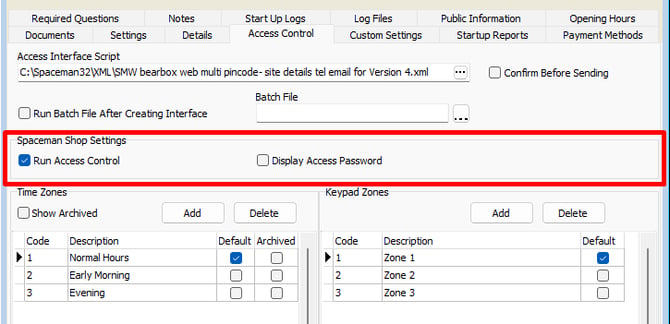
- Run Access Control
- When enabled, Spaceman Shop will run the access control process automatically when a customer completes a booking.
- When disabled, access control will not run through Shop. A member of staff will need to grant access manually via Spaceman Desktop after the booking is made. This allows for time to confirm before their access is granted.
- By default this is disabled.
- Display Access Password to Occupier
- When enabled, the customer's access password or PIN will be shown to them on the booking confirmation screen in Spaceman Shop, and included in their post-sale confirmation email.
- When disabled, the password is not displayed. The booking confirmation will instead show a message asking the customer to contact the site for access information.
- By default this is disabled.
If a customer reports not receiving their access details after booking online, check that both settings above are enabled for the site, and that Access Control is fully set up and tested as described above.