
Important: New Stripe Clients Must Complete Onboarding
All new clients setting up Stripe with SpacemanWeb must first complete the Stripe Onboarding process with RADical Systems to obtain their Proxy Key. This process connects the client's Stripe account to RADical's secure proxy server for PCI-compliant payment processing.
The clients will also need to provide their API keys (Publishable and Secret) and set up a webhook for Spaceman Web to work!
For onboarding instructions, see: Onboarding Stripe Customers
Stripe Payments setting enabled
Go to: Spaceman Desktop → Settings → Custom Settings → Page "SpacemanWeb Payments"
Ensure needed Stripe settings are set to "YES".
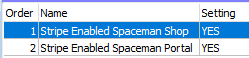
Stripe Site Settings
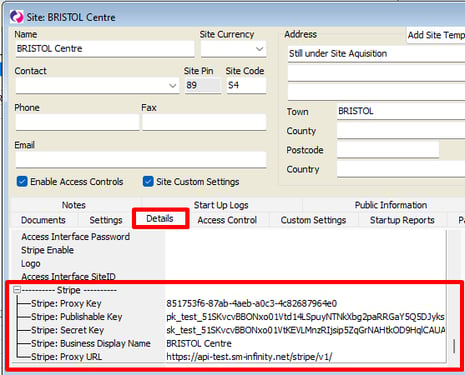
Go to: Spaceman Desktop → Maintenance → Sites → Select a Site and Expand → Details tab
Configure the following Site Tags:
Required for all Stripe payments on Spaceman Portal and Spaceman Shop:
-
Stripe: Proxy Key – Enter the Proxy Key obtained during the Stripe onboarding process. This key is retrieved from D&D after the client completes onboarding at https://onboarding.radicalsys.com/stripe. See the Onboarding article for more details: Onboarding Stripe Customers
-
Stripe: Publishable Key & Stripe: Secret Key – Enter your Publishable API key from your Stripe account. Found on the Stripe website through Developers → API Keys
-
Stripe: Business Display Name – Text entered here will show on the payment modal for this site. Can be anything.
-
Stripe: Proxy URL –
https://api-proxy.radicalsys.com/stripe/v1for Live clients.https://api-test.sm-infinity.net/stripe/v1for Testing.
These values should be added by the SMW Set Up Helper job when run.
Ensure an endpoint on Stripe has been created
On your Stripe account, in Developers → Webhooks, create an endpoint if not already created.
-
Click "Add endpoint"
-
Endpoint URL should be:
https://[YOUR_SMW_URL_HERE]/api/payment/stripe/webhook-
For example: https://www.example.net/api/payment/stripe/webhook
-
-
Make sure you add all Charge and Payment Intent events to listen to on this endpoint
-
Under "Select events to listen to", click "Select events" or "Change events"
-
Find both "Charge" and "Payment Intent"
-
Expand and click "Select all Charge events" and "Select all Payment Intent events"
-
-
Add the endpoint